
Building a functional calculator is a classic right-of-passage project for front-end developers. It tests your ability to structured HTML layouts, create rich CSS depth and effects, and manage state and user interactions with JavaScript.
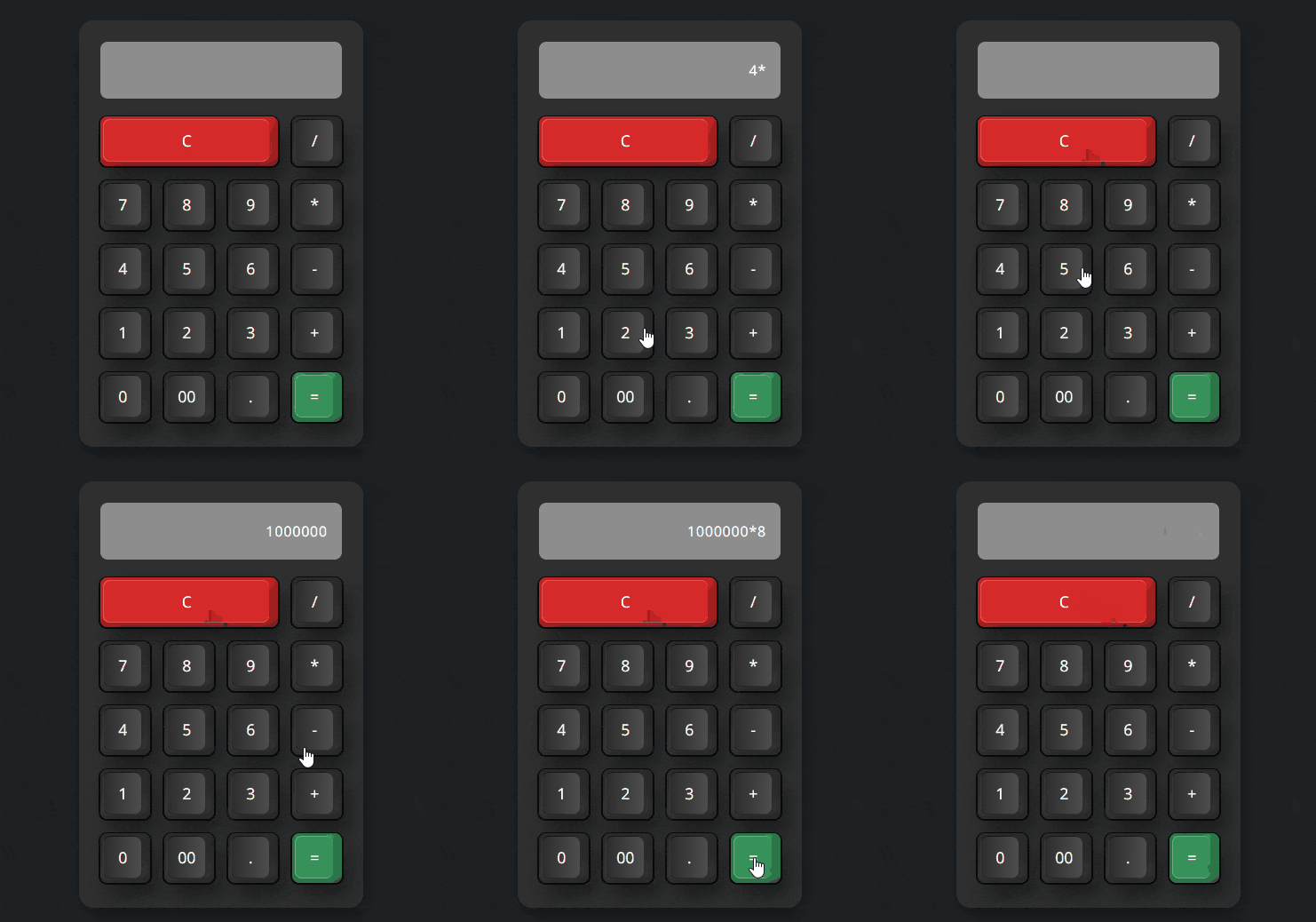
In this recipe, we will walk through a lightweight, stylish calculator project built using standard HTML5, CSS3, and JavaScript.
<!DOCTYPE html>
<html lang="en">
  <head>
    <meta charset="UTF-8" />
    <meta http-equiv="X-UA-Compatible" content="IE=edge" />
    <meta name="viewport" content="width=device-width, initial-scale=1.0" />
    <title>Calculator Tutorial & Documentation</title>
    <!-- Stylesheet Link: Connects external CSS file for styling layout, 3D buttons, and colors -->
    <link rel="stylesheet" href="style.css" />
    <!-- Google Fonts Preconnect: Loads custom typography 'Noto Sans' -->
    <link rel="preconnect" href="https://fonts.googleapis.com" />
    <link rel="preconnect" href="https://fonts.gstatic.com" crossorigin />
    <link
      href="https://fonts.googleapis.com/css2?family=Noto+Sans:wght@300;400;700&display=swap"
      rel="stylesheet"
    />
  </head>
  <body>
    <!--
      CALCULATOR STRUCTURE OVERVIEW:
      - `.container`: Wrapper element to center the calculator card on the page using Flexbox.
      - `.calculator`: Main calculator chassis holding input screen and buttons.
      - `.screen`: Read-only text input field used as the calculator's digital display.
      - `data-num` Attribute: Custom HTML attribute storing value or character for each button.
    -->
    <div class="container">
      <div class="calculator">
        <!-- Input Screen: Displays active calculation string and final answer -->
        <input type="text" class="screen" />

        <!-- Clear Button: Clears all current input when clicked -->
        <button type="button" data-num="C" class="btn clear"></button>

        <!-- Division Operator Button -->
        <button class="btn" data-num="/"></button>

        <!-- Numeric Buttons: 7, 8, 9 -->
        <button class="btn" data-num="7"></button>
        <button class="btn" data-num="8"></button>
        <button class="btn" data-num="9"></button>

        <!-- Multiplication Operator Button -->
        <button class="btn" data-num="*"></button>

        <!-- Numeric Buttons: 4, 5, 6 -->
        <button class="btn" data-num="4"></button>
        <button class="btn" data-num="5"></button>
        <button class="btn" data-num="6"></button>

        <!-- Subtraction Operator Button -->
        <button class="btn" data-num="-"></button>

        <!-- Numeric Buttons: 1, 2, 3 -->
        <button class="btn" data-num="1"></button>
        <button class="btn" data-num="2"></button>
        <button class="btn" data-num="3"></button>

        <!-- Addition Operator Button -->
        <button class="btn" data-num="+"></button>

        <!-- Numeric & Decimal Buttons: 0, 00, . -->
        <button class="btn" data-num="0"></button>
        <button class="btn" data-num="00"></button>
        <button class="btn" data-num="."></button>

        <!-- Equal Button: Triggers evaluation of expression on screen -->
        <button class="equal" data-num="="></button>
      </div>
    </div>

    <!-- JavaScript File: Handles event listeners, UI interactions, and mathematical processing -->
    <script src="script.js"></script>
  </body>
</html>/* ==========================================================================
GLOBAL & RESET STYLES
========================================================================== */
/* Universal Reset: Resets browser defaults for consistent box sizing across browsers */
* {
margin: 0;
padding: 0;
box-sizing: border-box;
outline: none;
font-family: "Noto Sans", sans-serif;
}
/* Base Font Size Trick: Sets root font-size to 62.5% (10px default equivalent).
This makes rem units extremely simple: 1.6rem = 16px, 40rem = 400px. */
html {
font-size: 62.5%;
}
/* ==========================================================================
2. LAYOUT & CONTAINER
==========================================================================
Outer Viewport Container: Covers 100% viewport and centers the calculator */
.container {
width: 100%;
height: 100vh;
background-color: #1e2224;
display: flex;
justify-content: center;
align-items: center;
}
/* Calculator Chassis: The main outer frame holding the screen and keys */
.calculator {
width: 40rem;
height: 60rem;
background-color: #2e2f30;
padding: 3rem 2rem;
display: flex;
flex-wrap: wrap;
justify-content: center;
align-items: center;
border-radius: 2rem;
box-shadow: 0 1rem 3rem rgba(0, 0, 0, 0.4);
}
/* ==========================================================================
3. DISPLAY SCREEN
========================================================================== */
/* Calculator Screen Display Input */
.screen {
width: 34rem;
height: 8rem;
background-color: #8d8d8d;
margin-bottom: 1.5rem;
border-radius: 1rem;
border: none;
pointer-events: none;
text-align: right;
font-size: 2rem;
letter-spacing: 0.1rem;
color: #fff;
padding: 2rem;
}
/* ==========================================================================
4. BUTTON BASE STYLES & PSEUDO-ELEMENT 3D EFFECTS
========================================================================== */
/* Standard Keycaps & Base Styling */
.btn,
.equal {
width: 7rem;
height: 7rem;
margin: 1rem;
border: none;
background: linear-gradient(180deg, #2f2f2f, #3f3f3f);
box-shadow: inset -0.8rem 0 0.8rem rgba(0, 0, 0, 0.15),
inset 0 -0.8rem 0.8rem rgba(0, 0, 0, 0.25), 0 0 0 0.2rem rgba(0, 0, 0, 0.75),
1rem 2rem 2.5rem rgba(0, 0, 0, 0.4);
border-radius: 1rem;
cursor: pointer;
position: relative;
}
/* Active Press Effect: Increases brightness when button is clicked */
.btn:active,
.equal:active {
filter: brightness(1.5);
}
.clear {
width: 25rem;
background: #d62929;
}
/* Key Surface Layer (::before): Renders button face & displays character from data-num */
.btn::before,
.equal::before {
content: attr(data-num);
position: absolute;
top: 0.3rem;
left: 0.4rem;
bottom: 0.7rem;
right: 1.2rem;
color: #fff;
display: flex;
justify-content: center;
align-items: center;
font-size: 2.2rem;
border-radius: 1rem;
background: linear-gradient(90deg, #2d2d2d, #4d4d4d);
box-shadow: -0.5rem -0.5rem 1.5rem rgba(0, 0, 0, 0.1),
1rem 0.5rem 1rem rgba(0, 0, 0, 0.15);
border-left: 0.1rem solid #0004;
border-bottom: 0.1rem solid #0004;
border-top: 0.1rem solid #0009;
}
/* ==========================================================================
5. SPECIAL BUTTON MODIFIERS (CLEAR & EQUAL)
========================================================================== */
/* Clear (C) Button Overrides */
.clear::before {
background: #d62929;
border-left: 0.1rem solid #fff4;
border-bottom: 0.1rem solid #fff4;
border-top: 0.1rem solid #fff4;
}
/* Equal (=) Button Overrides */
.equal {
background: #37925a;
}
.equal::before {
background: #37925a;
border-left: 0.1rem solid #fff4;
border-bottom: 0.1rem solid #fff4;
border-top: 0.1rem solid #fff4;
}
/**
 * Calculator Core Application Logic
 * Encapsulates DOM element selectors, event handling, and calculation processing.
 */
const calculate = () => {
  // 1. DOM Element Selection
  let screen = document.querySelector(".screen");     // Display input element
  let buttons = document.querySelectorAll(".btn");    // All standard input keys (0-9, operators)
  let clear = document.querySelector(".clear");       // Clear screen button (C)
  let equal = document.querySelector(".equal");       // Evaluation button (=)

  /**
   * 2. Number & Operator Input Handler
   * Iterates over all standard buttons and adds a click listener.
   * Reads the custom 'data-num' attribute from the clicked element
   * and appends its character value directly to the screen input field.
   */
  buttons.forEach((button) => {
    button.addEventListener("click", (e) => {
      let value = e.target.dataset.num; // Extracts key value from data-num attribute
      screen.value += value;           // Appends clicked value to existing input string
      console.log(e.target.dataset.num); // Logs value to browser developer console
    });
  });

  /**
   * 3. Expression Evaluation Handler
   * Triggers when the equal ('=') button is clicked.
   * Evaluates the full mathematical expression string present on screen
   * using JavaScript's built-in eval() function and outputs the result.
   */
  equal.addEventListener("click", function () {
    let answer = eval(screen.value); // Parses and calculates string expression (e.g. "5+5" -> 10)
    screen.value = answer;           // Replaces current screen text with calculated answer
  });

  /**
   * 4. Clear/Reset Handler
   * Triggers when the clear ('C') button is clicked.
   * Resets screen value to an empty string to wipe all user inputs.
   */
  clear.addEventListener("click", (e) => {
    screen.value = ""; // Clears the input field
  });
};

// Initialize calculator function on script load
calculate();🍳 Recipe Ingredients
- HTML5: For structured layout and data attributes (
data-num). - CSS3: For styling, flexbox layout, custom typography, and 3D button visual depth.
- JavaScript (ES6): For DOM manipulation, button event listeners, and mathematical evaluation.
🔍 How the Code Works
1. HTML Structure (index.html)
- Layout Grid: A main
.containerholds the.calculatorcard. - Display Screen: An
<input type="text" class="screen">field acts as the output screen. - Interactive Elements: Buttons use custom
data-numattributes (e.g.,data-num="7",data-num="+") to hold their respective input values. - Typography: Pre-connected to Google Fonts to load the Noto Sans font family.
2. Modern CSS Styling (style.css)
- Responsive Sizing: Uses
html { font-size: 62.5%; }so1remequals10px, making layout measurements simple and predictable. - Centering: Uses Flexbox on
.containerto center the calculator vertically and horizontally on the viewport (100vh). - Realistic 3D Buttons: Buttons feature multi-layered CSS inset/outset shadows and
::beforepseudo-elements with subtle gradient borders to mimic real physical button caps. - Color Accents: Custom background styling creates distinct visual hierarchy:
- Clear (
C) button: Red#d62929. - Equal (
=) button: Green#37925a. - Standard buttons: Dark metallic grey gradients.
- Clear (
3. JavaScript Logic (script.js)
- DOM Selection: Selects all essential UI elements using
document.querySelectoranddocument.querySelectorAllinside thecalculatearrow function. - Button Appends: A
forEachloop attaches a click event listener to each standard button (.btn), reading itsdata-numattribute and appending it directly toscreen.value. - Clear Screen: Clicking the Clear (
.clear) button resetsscreen.valueto an empty string"". - Calculation: Clicking the Equal (
.equal) button runseval(screen.value)to evaluate the math expression string and display the answer.
📝 Key Variables & Customization Options
If you want to customize or tweak this calculator for your own website or theme, here are the most important variables and values you can modify:
1. JavaScript Variables (script.js)
screen(document.querySelector(".screen")): Target input element for the display.buttons(document.querySelectorAll(".btn")): Collection of all numerical and operational buttons.clear(document.querySelector(".clear")): Target element for the reset/clear function.equal(document.querySelector(".equal")): Target element for evaluating the final equation.
💡 Developer Note on
eval(): In this beginner project,eval()is used for simple string-to-math conversion. For production apps, consider replacingeval()with a safer custom parsing function to prevent arbitrary code execution vulnerabilities.
2. Customizable CSS Styling (style.css)
| Element | CSS Property | Default Value | What it Controls |
| Main Background | .container { background-color } | #1e2224 | Page background color |
| Calculator Body | .calculator { background-color } | #2e2f30 | Main calculator chassis color |
| Calculator Size | .calculator { width, height } | 40rem, 60rem | Overall dimensions (width & height) |
| Screen Background | .screen { background-color } | #8d8d8d | Digital screen display color |
| Clear Button | .clear { background } | #d62929 | Red highlight color for clear button |
| Equal Button | .equal { background } | #37925a | Green highlight color for equal button |
| Border Radius | .calculator, .btn | 2rem, 1rem | Rounded corner styling for frame & keycaps |