
Welcome to today’s code recipe! If you’re looking for a quick and elegant way to build an interactive authentication form without reloading the page, you’re in the right place.
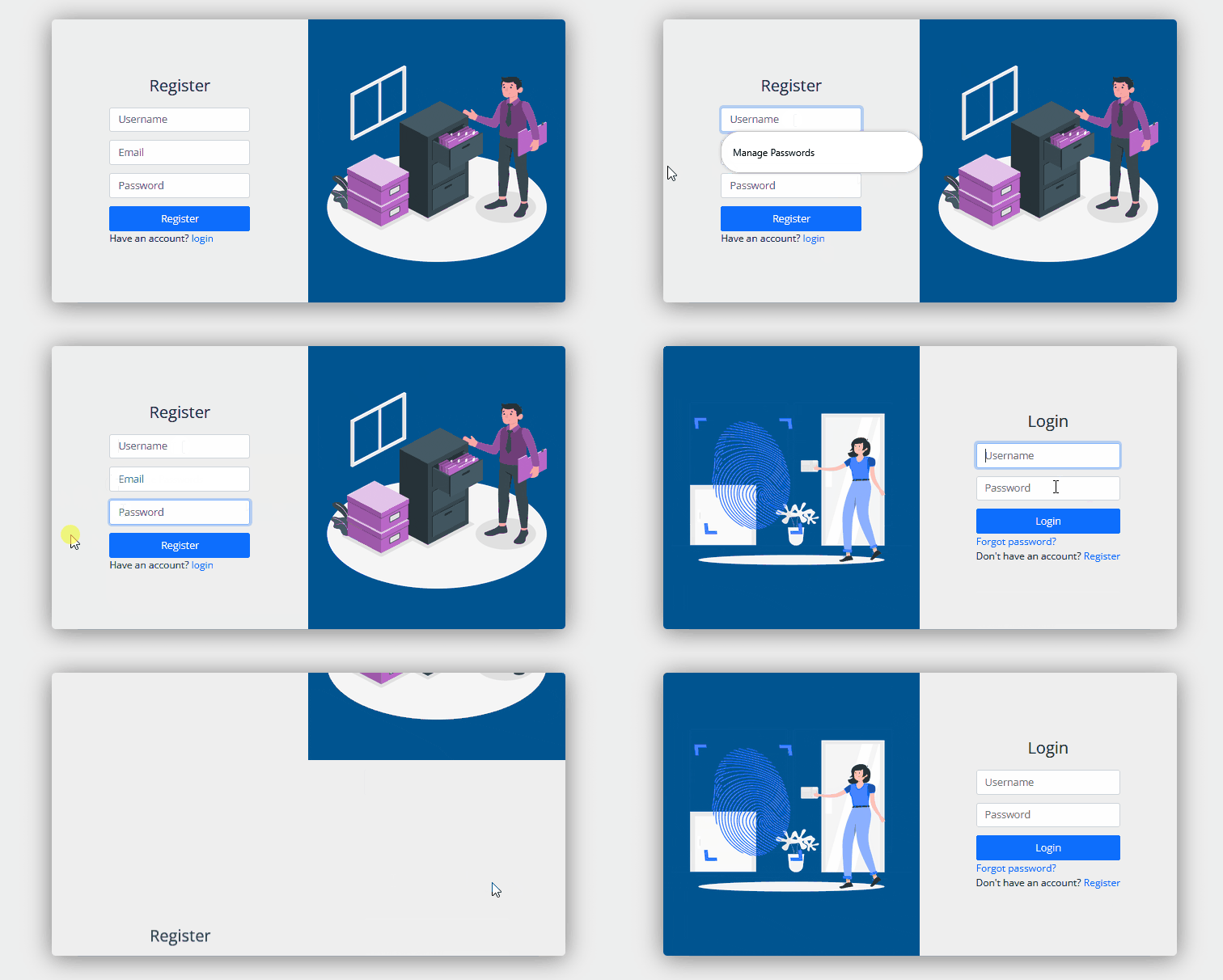
This blog post breaks down a simple front-end recipe you can serve right into your website project.
<!DOCTYPE html>
<html lang="en">
  <head>
    <meta charset="UTF-8" />
    <meta name="viewport" content="width=device-width, initial-scale=1.0" />
    <title>Authentication Pop-Up Tutorial</title>

    <!--
      FontAwesome Library
      Function: Provides vector icons used across the form (e.g., the close button icon).
    -->
    <script src="https://kit.fontawesome.com/1935d064dd.js" crossorigin="anonymous"></script>

    <!--
      Bootstrap 5 CSS
      Function: Standardizes layout, input field styles, and action button sizing/grid layout.
    -->
    <link
      href="https://cdn.jsdelivr.net/npm/bootstrap@5.0.0-beta3/dist/css/bootstrap.min.css"
      rel="stylesheet"
      integrity="sha384-eOJMYsd53ii+scO/bJGFsiCZc+5NDVN2yr8+0RDqr0Ql0h+rP48ckxlpbzKgwra6"
      crossorigin="anonymous"
    />

    <!--
      Custom CSS Stylesheet
      Function: Contains custom layout positioning, CSS root variables, flexboxes, and CSS animation keyframes.
    -->
    <link rel="stylesheet" href="styles.css" />
  </head>
  <body>
    <!--
      MAIN SECTION WRAPPER (.main)
      Function: Centering container covering 100% viewport height (100vh).
      Working Mechanism: CSS Flexbox centers the popup box vertically and horizontally on screen.
    -->
    <section class="main">
      <div class="container box">

        <!--
          ===================================================================
          1. LOGIN SECTION (.login)
          ===================================================================
          Function: Serves as the primary landing view for existing users to sign in.
          Working Mechanism:
          - Displayed by default when page loads.
          - Contains action trigger links: '.register-link' and '.forgot-link'.
          - Clicking '.register-link' runs JS script to set display:none on .login and display:flex on .register.
          - Clicking '.forgot-link' runs JS script to set display:none on .login and display:flex on .forgot.
        -->
        <div class="login main-container">
          <!-- Image side container (slides down via CSS animation @keyframes slide-down) -->
          <div class="login-img img-container">
            <img src="./images/sign-in.png" alt="login" />
          </div>

          <!-- Form side container (slides up via CSS animation @keyframes slide-up) -->
          <div class="login-form form-container">
            <form action="">
              <h2 class="text-center pb-3">Login</h2>
              <input
                type="text"
                class="form-control form-control-lg mb-3"
                placeholder="Username"
              />
              <input
                type="password"
                class="form-control form-control-lg mb-3"
                placeholder="Password"
              />
              <div class="d-grid">
                <button class="btn btn-primary btn-lg">Login</button>
              </div>

              <!-- Navigation link to trigger the Reset Password view -->
              <a href="#" class="forgot-link">Forgot password?</a>

              <!-- Navigation link to trigger the Register view -->
              <span>
                Don't have an account?
                <a href="#" class="register-link">Register</a>
              </span>
            </form>
          </div>
        </div>

        <!--
          ===================================================================
          2. REGISTER SECTION (.register)
          ===================================================================
          Function: Provides new users with account creation input fields.
          Working Mechanism:
          - Hidden by default via CSS (display: none).
          - Revealed when user clicks '.register-link' inside the login section.
          - Contains '.login-link' which triggers JS to hide .register and switch back to .login.
        -->
        <div class="register main-container">
          <div class="register-form form-container">
            <form action="">
              <h2 class="text-center pb-3">Register</h2>
              <input
                type="text"
                class="form-control form-control-lg mb-3"
                placeholder="Username"
              />
              <input
                type="email"
                class="form-control form-control-lg mb-3"
                placeholder="Email"
              />
              <input
                type="password"
                class="form-control form-control-lg mb-3"
                placeholder="Password"
              />
              <div class="d-grid">
                <button class="btn btn-primary btn-lg">Register</button>
              </div>

              <!-- Navigation link to return to the Login view -->
              <span>
                Have an account?
                <a href="#" class="login-link">login</a>
              </span>
            </form>
          </div>

          <!-- Image side container for register view -->
          <div class="register-img img-container">
            <img src="./images/sign-up.png" alt="login" />
          </div>
        </div>

        <!--
          ===================================================================
          3. RESET PASSWORD SECTION (.forgot)
          ===================================================================
          Function: Allows users to request password reset instructions.
          Working Mechanism:
          - Hidden by default via CSS (display: none).
          - Displayed when user clicks '.forgot-link' inside the login section.
          - Contains a close button (.close). Clicking .close triggers JS to hide .forgot and restore .login view.
        -->
        <div class="forgot main-container">
          <div class="forgot-form form-container">
            <form action="">
              <h2 class="text-center pb-3">Reset Password</h2>

              <input
                type="password"
                class="form-control form-control-lg mb-3"
                placeholder="Password"
              />
              <div class="d-grid">
                <button class="btn btn-primary btn-lg">Reset Password</button>
              </div>

              <span> We will send you a reset link!!! </span>
            </form>

            <!-- Close icon button to return to login modal -->
            <div class="close">
              <i class="fas fa-times"></i>
            </div>
          </div>

          <!-- Image side container for reset password view -->
          <div class="forgot-img img-container">
            <img src="./images/forgot.svg" alt="forgot" />
          </div>
        </div>
      </div>
    </section>

    <!--
      JAVASCRIPT FILE (script.js)
      Function: Executes DOM selection and adds click event listeners to navigate seamlessly between views.
    -->
    <script src="script.js"></script>
  </body>
</html>@import url("https://fonts.googleapis.com/css2?family=Open+Sans:wght@300;400;600;700&display=swap");
:root {
--white: #fff;
--black: #1c2b2d;
--blue: #31326f;
--light-blue: #005490;
--color-primary: #9d0191;
--color-sec: #db6400;
--grey: #eee;
--dark-grey: #222831;
}
* {
margin: 0;
padding: 0;
box-sizing: border-box;
}
html {
font-size: 10px;
}
body {
font-family: "Open Sans", sans-serif;
}
p {
font-size: 1.6rem;
line-height: 1.5;
}
img {
/* width: 30%; */
}
.container {
/* max-width: 900px;
margin: 0 auto;
padding: 0 20px; */
}
/* Start Here */
section.main {
width: 100%;
display: flex;
justify-content: center;
align-items: center;
height: 100vh;
background-color: var(--grey);
/* border: 2px solid red; */
}
.box {
width: 65rem;
height: auto;
/* border: 2px solid red; */
}
.main-container {
width: 100%;
height: 35rem;
display: flex;
justify-content: space-between;
align-items: center;
border-radius: 5px;
overflow: hidden;
box-shadow: 0 3px 30px rgba(0, 0, 0, 0.5);
}
.img-container {
width: 50%;
height: 100%;
padding: 4rem 1rem;
background-color: var(--light-blue);
animation: slide-down 0.5s ease;
}
@keyframes slide-down {
0% {
transform: translateY(-100%);
}
100% {
transform: translateY(0);
}
}
.img-container img {
width: 100%;
height: 100%;
}
.form-container {
width: 50%;
height: 100%;
display: flex;
justify-content: center;
align-items: center;
animation: slide-up 0.5s ease;
}
@keyframes slide-up {
0% {
transform: translateY(100%);
}
100% {
transform: translateY(0);
}
}
form a {
font-size: 1.2rem;
text-decoration: none;
}
form span {
display: block;
font-size: 1.2rem;
}
.login {
/* display: none; */
}
.register {
display: none;
}
.forgot {
display: none;
position: relative;
}
.close {
position: absolute;
top: 1rem;
left: 1rem;
height: 3rem;
width: 3rem;
border: 1px solid red;
border-radius: 50%;
display: flex;
justify-content: center;
align-items: center;
cursor: pointer;
}
.fa-times {
color: red;
font-size: 1.5rem;
}
@media screen and (max-width: 500px) {
.img-container {
display: none;
}
.form-container {
width: 100%;
}
}
/**
 * ============================================================================
 * POP-UP NAVIGATION SCRIPT (script_commented.js)
 * ============================================================================
 * Function: Manages screen transitions between Login, Register, and Reset Password views.
 * Working Mechanism: Uses DOM selection to attach event listeners to interactive links/buttons.
 * When triggered, JavaScript dynamically modifies inline CSS display properties ('none' vs 'flex')
 * to toggle visibility between form containers without reloading the web page.
 */

// ----------------------------------------------------------------------------
// 1. DOM ELEMENT SELECTION
// ----------------------------------------------------------------------------
// Select trigger elements (clickable links and close icon)
const login = document.querySelector(".login-link");      // Link inside Register view to switch to Login
const register = document.querySelector(".register-link"); // Link inside Login view to switch to Register
const forgot = document.querySelector(".forgot-link");     // Link inside Login view to switch to Reset Password
const close = document.querySelector(".close");           // Close button (X) inside Reset Password view

// Select container elements (form wrapper sections)
const loginSection = document.querySelector(".login");       // Main login section container
const registerSection = document.querySelector(".register"); // Registration section container
const forgotSection = document.querySelector(".forgot");     // Reset password section container

// ----------------------------------------------------------------------------
// 2. EVENT LISTENERS & SWITCHING LOGIC
// ----------------------------------------------------------------------------

/**
 * Event Listener: Navigate from Login to Register view
 * Mechanism: Triggered when user clicks the "Register" link in the login form.
 * Action: Hides the login container (display: none) and displays the register container (display: flex).
 */
register.addEventListener("click", () => {
  loginSection.style.display = "none";
  registerSection.style.display = "flex";
});

/**
 * Event Listener: Navigate from Register to Login view
 * Mechanism: Triggered when user clicks the "login" link in the register form.
 * Action: Hides the register container (display: none) and restores the login container (display: flex).
 */
login.addEventListener("click", () => {
  registerSection.style.display = "none";
  loginSection.style.display = "flex";
});

/**
 * Event Listener: Navigate from Login to Reset Password view
 * Mechanism: Triggered when user clicks "Forgot password?" link in the login form.
 * Action: Hides the login container (display: none) and displays the forgot password container (display: flex).
 */
forgot.addEventListener("click", () => {
  loginSection.style.display = "none";
  forgotSection.style.display = "flex";
});

/**
 * Event Listener: Close Reset Password view and return to Login
 * Mechanism: Triggered when user clicks the close icon (X) in the reset password section.
 * Action: Hides the forgot password container (display: none) and restores the login container (display: flex).
 */
close.addEventListener("click", () => {
  forgotSection.style.display = "none";
  loginSection.style.display = "flex";
});🍳 How Does This Code Work?
This authentication pop-up system acts like a lightweight Single Page Application, where elements swap dynamically. Here is the quick breakdown:
- The Main Structure (
index.html): This interface leverages the Bootstrap 5 CSS framework to streamline the form inputs and buttons, alongside FontAwesome for displaying the icons. The file wraps three separate sections—Login, Register, and Reset Password—into one central container called.box. - Layout & Animations (
styles.css): The design uses Flexbox (specifically on the.main-containerand.form-containerclasses) to ensure content is perfectly aligned vertically and horizontally. The visual appeal comes from custom@keyframesanimations; the image container slides down (slide-down) while the form container slides up (slide-up) when they appear. Forms other than the Login screen are hidden by default usingdisplay: none. - Dynamic Interactivity (
script.js): This script relies on straightforward DOM manipulation. It captures click interactions on links like “Register” or “Forgot password?” using event listeners. When a link is clicked, JavaScript simply updates the CSS inline styles, hiding the currently active form (style.display = "none") and revealing the targeted form (style.display = "flex").
🧂 Customization Notes: Ingredients You Can Tweak
To make this recipe match your brand’s specific taste or theme, there are a few crucial variables you can easily modify:
- Theme Color Palette: In the
styles.cssfile, look at the:rootblock at the very top. You can swap the variables like--light-blue,--color-primary, or--blackwith your own Hex or RGB color codes. Since it uses CSS variables, changing a color here will seamlessly update it across the entire interface. - Images & Illustrations: Inside
index.html, the image tags are currently pointing to a local folder, such as<img src="./images/sign-in.png" ...>. You will need to replace these paths or URLs with your own illustrations or logos so the images render correctly on your site. - Font Typography: This layout uses the “Open Sans” font, which is imported directly from Google Fonts. You can swap the URL in the
@importrule with another font of your choice—like Inter, Poppins, or Roboto—to give the design a completely different feel. - Transition Animation Speed: If you feel the forms appear too quickly or too slowly, find the code
animation: slide-up 0.5s ease;in yourstyles.cssfile. Simply change0.5sto your preferred duration (for example,0.8sfor a smoother, slower effect).
With a clean structure that neatly separates the logic, design, and markup, you can easily integrate this pop-up system into your workflow. Happy coding!