Looking to add a crisp, functional digital clock to your web applications? Like any great recipe, building a smooth digital clock requires just a few essential ingredients: clean HTML structure, custom CSS styling, and a pinch of JavaScript event-handling logic.
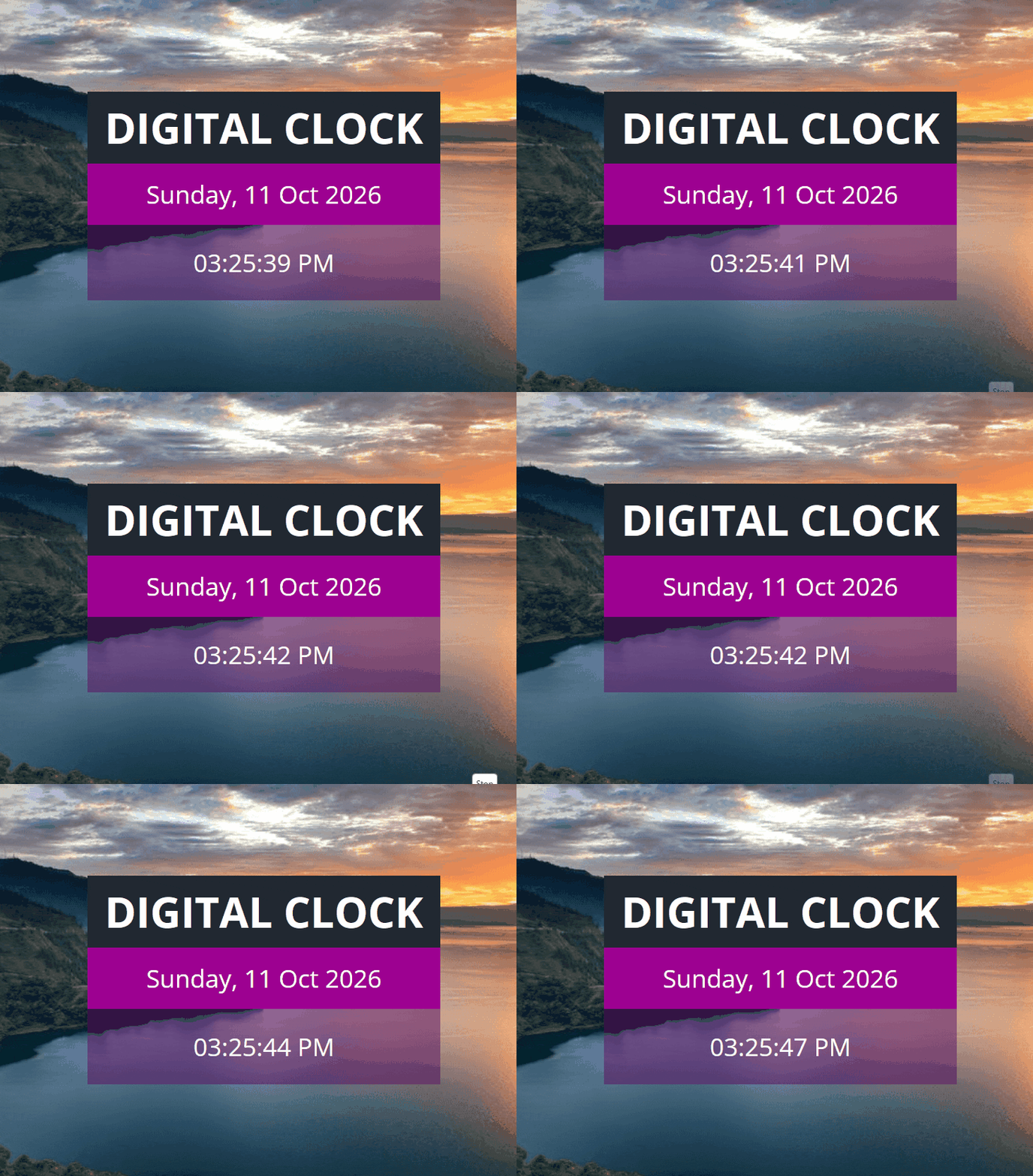
In this quick web development guide, we’ll break down how this code works under the hood and highlight the exact key variables you can tweak to customize the clock to fit your site’s design.
<!DOCTYPE html>
<html lang="en">
  <head>
    <meta charset="UTF-8" />
    <meta name="viewport" content="width=device-width, initial-scale=1.0" />
    <title>Digital Clock</title>
    <!-- FontAwesome library for potential icon usage -->
    <script
      src="https://kit.fontawesome.com/1935d064dd.js"
      crossorigin="anonymous"
    ></script>
    <!-- Link to external stylesheet -->
    <link rel="stylesheet" href="styles.css" />
  </head>
  <body>
    <!-- Main section container -->
    <section>
      <div class="container">
        <!-- Header title box -->
        <div class="title">
          <h1>Digital Clock</h1>
        </div>
        <!-- Date display element (will be updated dynamically by JS) -->
        <div class="display date">Thur, 19 Mar</div>
        <!-- Time display element (will be updated dynamically by JS) -->
        <div class="display time">12:00AM</div>
      </div>
    </section>

    <!-- Link to external JavaScript file -->
    <script src="script.js"></script>
  </body>
</html>/* Import Google Font 'Open Sans' */
@import url("https://fonts.googleapis.com/css2?family=Open+Sans:wght@300;400;600;700&display=swap");
/* CSS Custom Properties (Variables) for color palette */
:root {
--white: #fff;
--black: #1c2b2d;
--blue: #31326f;
--light-blue: #005490;
--color-primary: #9d0191;
--color-sec: #db6400;
--grey: #eee;
--dark-grey: #222831;
}
/* Global reset for margins, paddings, and box-sizing */
* {
margin: 0;
padding: 0;
box-sizing: border-box;
}
/* Set base font size for rem units */
html {
font-size: 10px;
}
body {
font-family: "Open Sans", sans-serif;
}
p {
font-size: 1.6rem;
line-height: 1.5;
}
img {
width: 100%;
}
/* Main container styling centering content over background image */
.container {
margin: 0 auto;
padding: 0 20px;
height: 100vh;
display: flex;
justify-content: center;
align-items: center;
flex-direction: column;
background: url(./images/bg.png) no-repeat center;
background-size: cover;
position: relative;
color: var(--white);
}
/* Title box styling */
.title {
font-size: 3rem;
text-transform: uppercase;
text-align: center;
width: 50rem;
background-color: var(--dark-grey);
padding: 1rem 0;
}
/* Base style for display boxes (time and date) */
.display {
width: 50rem;
background-color: rgba(90, 9, 94, 0.5);
padding: 3rem 0;
text-align: center;
font-size: 3.5rem;
}
/* Specific styling for the date display box */
.date {
background-color: var(--color-primary);
padding: 2rem 0;
}/**
* Function to format a Date object into a readable date string.
* @param {Date} d - The date object to format.
* @returns {string} Formatted date string (e.g., "Thursday, 19 Mar 2026").
*/
function getDate(d) {
let months = [
"Jan", "Feb", "Mar", "Apr", "May", "June",
"July", "Aug", "Sep", "Oct", "Nov", "Dec",
];
let days = [
"Sunday", "Monday", "Tuesday", "Wednesday",
"Thursday", "Friday", "Saturday",
];
let day = days[d.getDay()];
let date = d.getDate();
let month = months[d.getMonth()];
let year = d.getFullYear();
return `${day}, ${date} ${month} ${year}`;
}
/**
* Function to update the clock display (both date and time) dynamically.
*/
function updateClock() {
let today = new Date();
// Update date DOM element if it exists
const dateElement = document.querySelector(".date");
if (dateElement) {
dateElement.innerHTML = getDate(today);
}
// Get current time components
let h = today.getHours();
let m = today.getMinutes();
let s = today.getSeconds();
let session = "AM";
// Convert 24-hour format to 12-hour AM/PM format
if (h === 0) {
h = 12;
} else if (h > 12) {
h = h - 12;
session = "PM";
}
// Append leading zero to single-digit hours, minutes, and seconds
h = h < 10 ? "0" + h : h;
m = m < 10 ? "0" + m : m;
s = s < 10 ? "0" + s : s;
// Construct time string with AM/PM session
let time = `${h}:${m}:${s} ${session}`;
// Update time DOM element if it exists
const timeElement = document.querySelector(".time");
if (timeElement) {
timeElement.innerHTML = time;
}
}
// Initial call to display the clock immediately upon loading
updateClock();
// Set interval to update the clock every 1000 milliseconds (1 second)
setInterval(updateClock, 1000);🍳 How It Works (The Recipe Breakdown)
- The HTML Layout (Structure):The HTML acts as the base framework. It creates a main container holding three stacked elements: the title header (
.title), a date display box (.date), and a time display box (.time). - The CSS Styling (Presentation):Using CSS Flexbox, the entire clock card is centered vertically and horizontally on the screen (
display: flex; justify-content: center; align-items: center;). The background image fills the browser viewport, while semi-transparent background colors (rgba) give the clock boxes their signature translucent purple look. - The JavaScript Engine (Functionality):
- Fetching Time: Whenever
updateClock()runs,new Date()grabs the exact current system date and time from the user’s device. - Formatting Date & Time: The
getDate()function converts numeric days (0–6) and months (0–11) into readable names (e.g., “Thursday”, “March”). It also converts 24-hour time to a standard 12-hour format with anAM/PMsuffix and adds a leading zero (0) to single-digit numbers for consistent alignment. - Real-Time Updates:
setInterval(updateClock, 1000)executesupdateClock()every 1,000 milliseconds (1 second), dynamically updating the DOM (.innerHTML) without reloading the page.
- Fetching Time: Whenever
📝 Important Notes: Key Variables You Can Customize
If you want to tweak this recipe to suit your project’s specific look and feel, here are the main variables and properties you can adjust in the code:
1. CSS Customization Variables (styles.css)
Inside the :root block, you can easily change the color scheme by updating these variables:
--color-primary: #9d0191;— Changes the background color of the date display box.--dark-grey: #222831;— Changes the header title box background color.background: url(./images/bg.jpg)...(in.container) — Replace./images/bg.jpgwith your own image path or URL.width: 50rem;(in.title&.display) — Adjust this value to make the clock wider or narrower.
2. JavaScript Configuration Variables (script.js)
Months & Days Arrays (months, days):Located inside the getDate() function. You can translate these strings into any language (e.g., Indonesian, Spanish, or Japanese) or switch between short/long month names:
let months = ["Jan", "Feb", "Mar", "Apr", ...]; // Change string values for localizationInterval Rate (setInterval):
setInterval(updateClock, 1000); // 1000ms = 1 second refresh rateKeeping this set to 1000 ensures smooth second-by-second updates without causing performance overhead.